




TURN CANVA INTO CASH:
5 DIGITAL PRODUCTS
YOU CAN MAKE TODAY
Discover 5 digital products you can design in Canva and
start selling within hours
Discover 5 digital products
you can design in Canva and
start selling within hours
Are you interested in generating passive income by selling your own digital products this year?
Perhaps you're pressed for time or struggling to create these products yourself.
In that case, I'm here to help. Today, I'll introduce you to five digital products that you can create in a matter of minutes using advanced AI tools.
The first step is to log in to your Canva account at Canva.com. From there, we'll leverage the tools available in Canva to craft these five digital products effortlessly.
Let's get started!
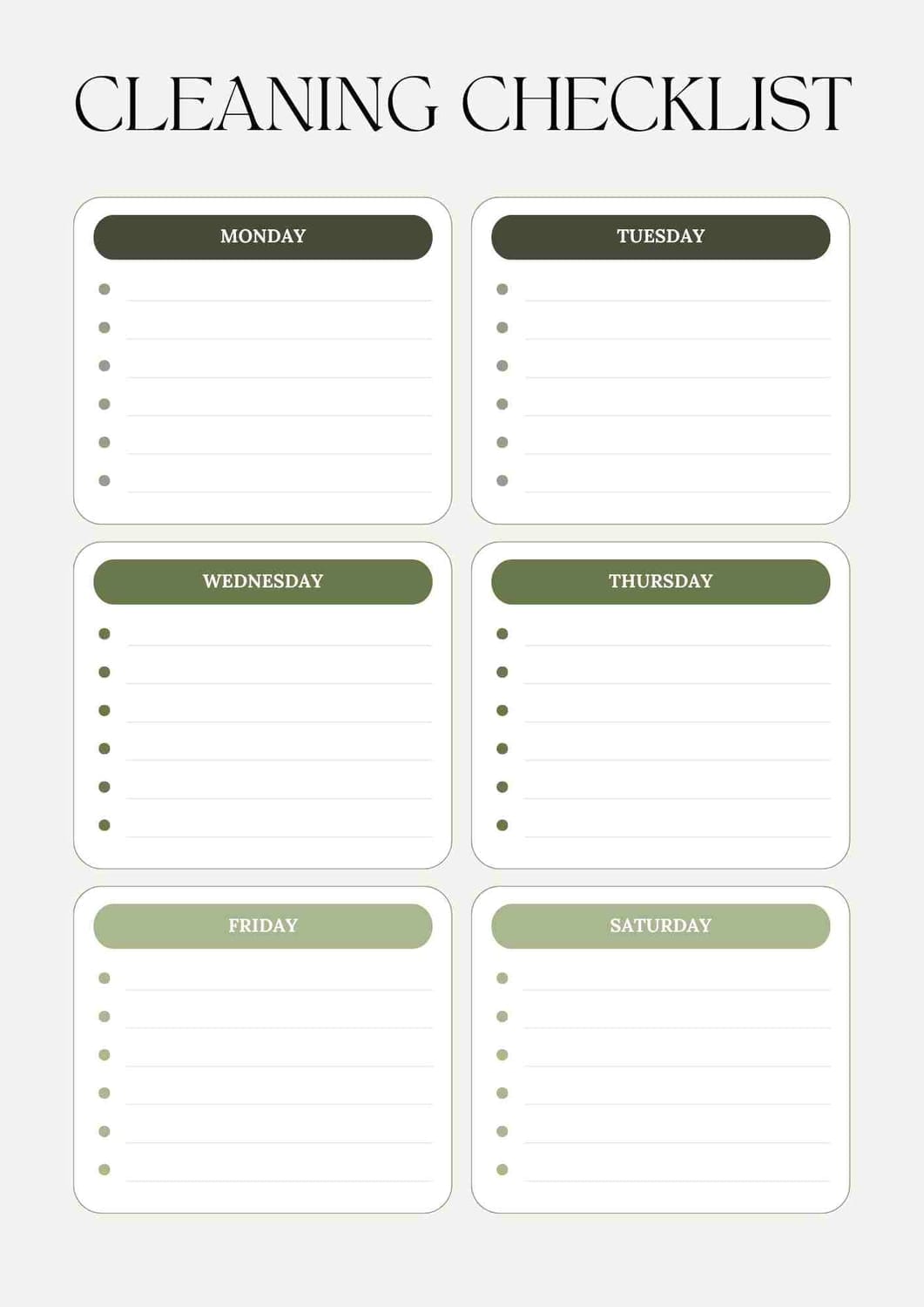
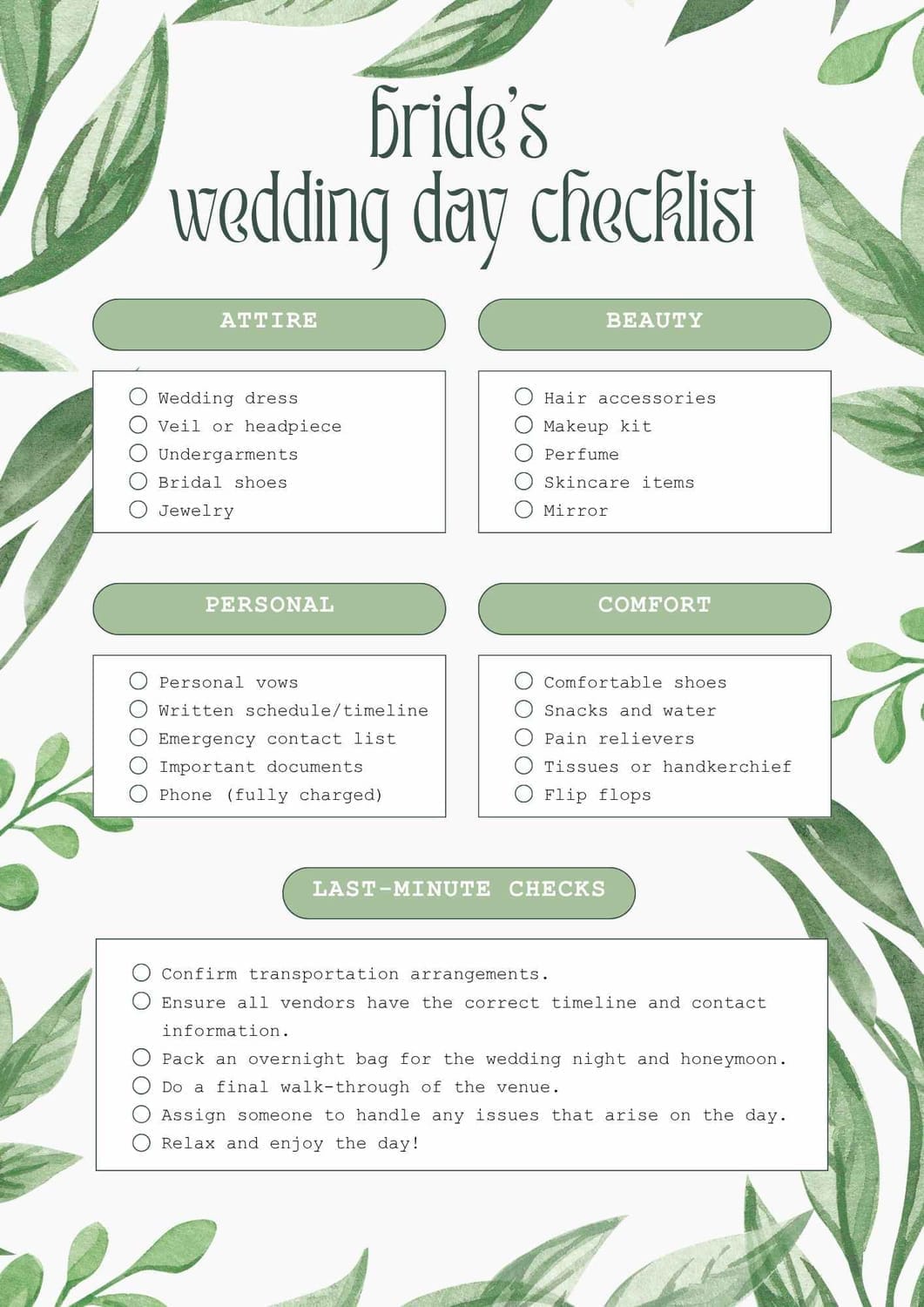
DIGITAL PRODUCT 1 - Checklist
The first thing you can make using Canva is a checklist. Just go to "Create a design" and search for "Checklist". You'll see lots of templates to choose from.
Pick one you like and personalise it by changing the fonts, colors, and content. You can even use Magic Write to help with the text.
These examples show how you can modify and sell checklists as a digital product.
I might make a small commission from affiliate links in this post, but it won't cost you anything extra. Please read my disclaimer for more details.
A checklist is a list of tasks related to your area of interest that can help you stay organised and complete things efficiently.
By breaking down each step of a process, checklists make it easier to manage your tasks.
That makes this digital product valuable and makes people want to buy it.
DIGITAL PRODUCT 2- Planner
The next digital product you can make in Canva is a planner. To sell it successfully, you need to decide on a specific theme for the planner.
If it's just a plain planner, there's a lot of competition. To make your planner stand out and sell well online, you should focus on a particular topic, like a weekly planner for online business owners or a daily planner for personal care. This will make it more appealing to buyers.
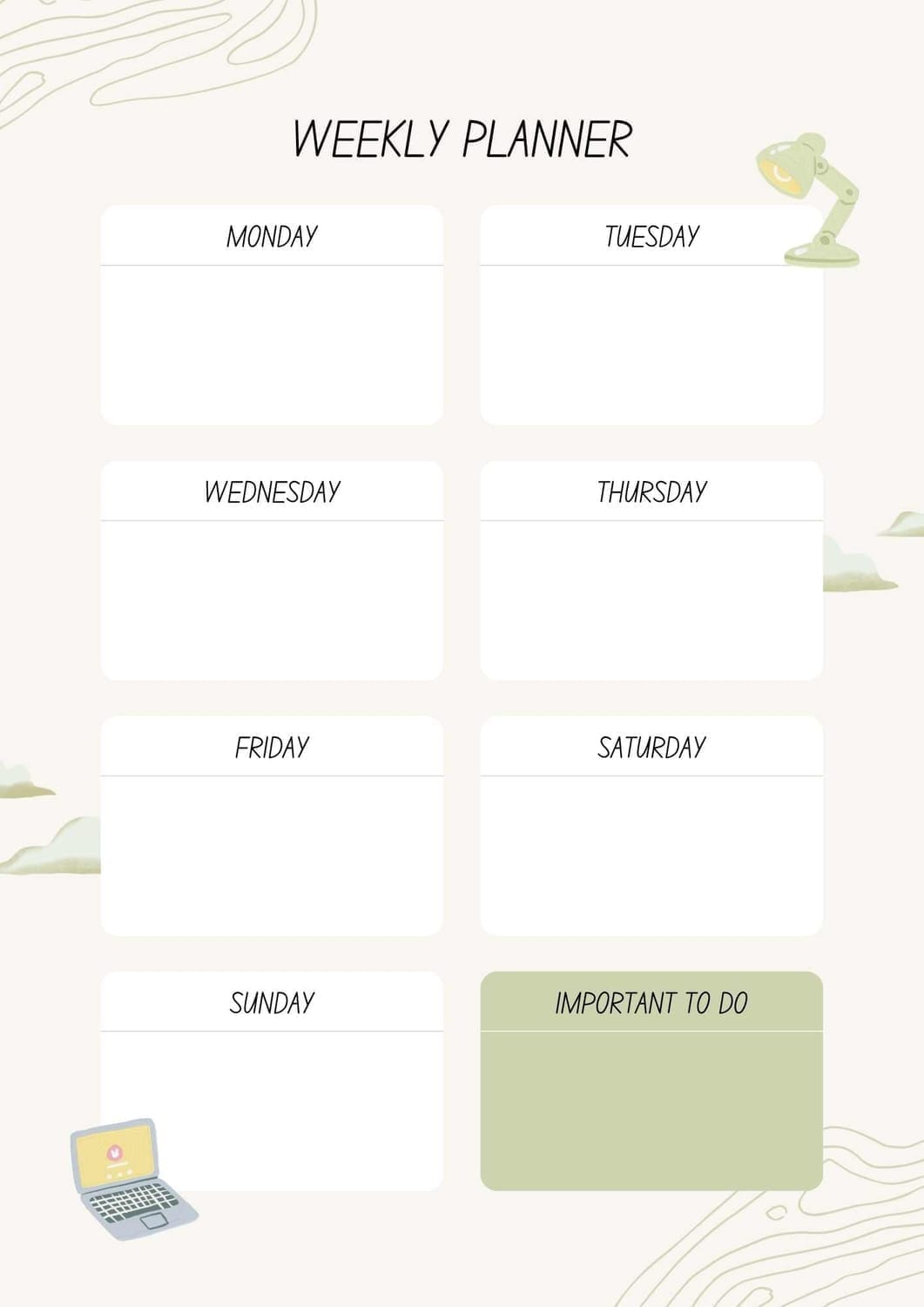
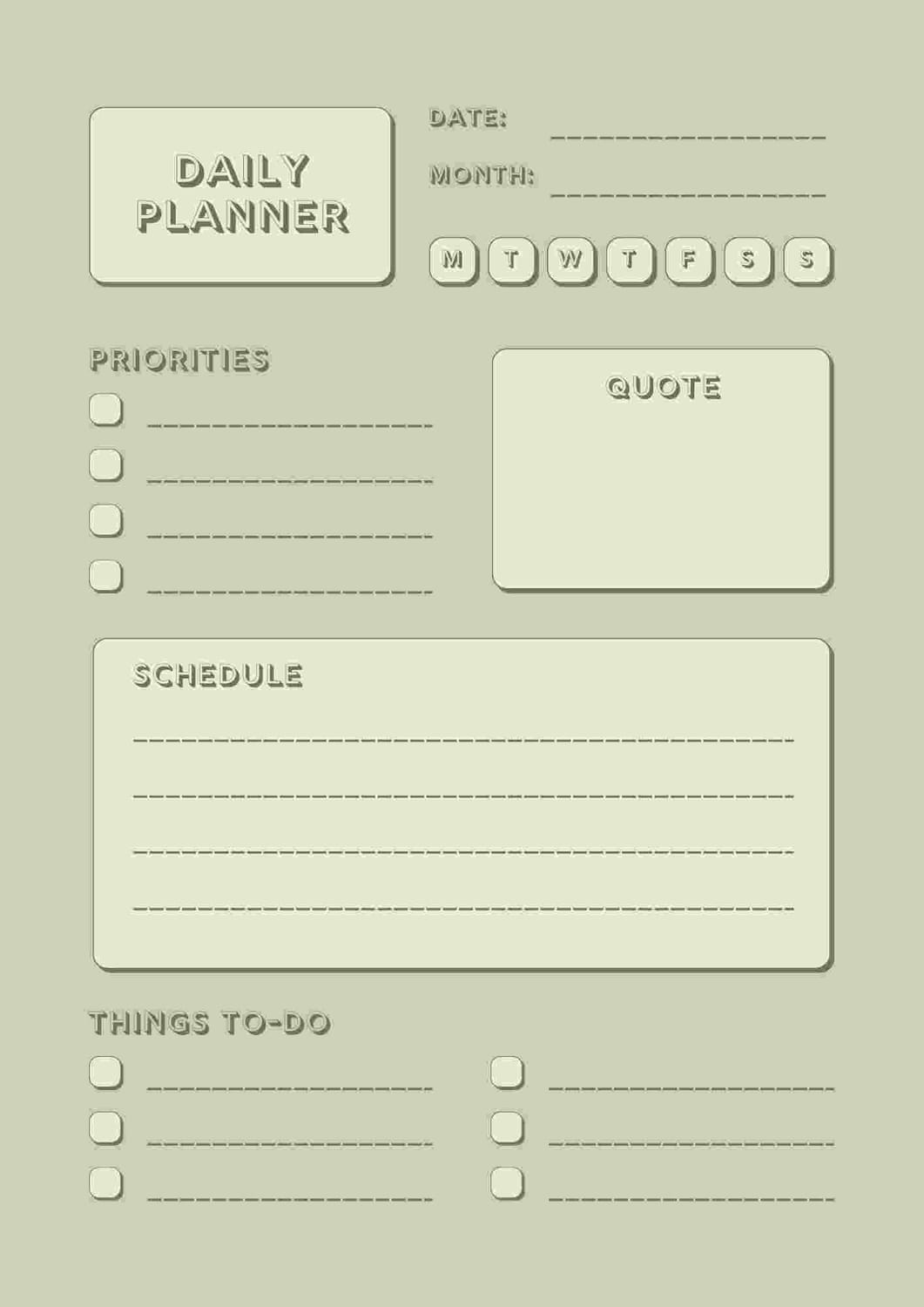
Here are some examples of planners:
Daily personal planner
Weekly business planner
Use the Magic write tool for prompts for your planner.
Here are five daily planner prompts tailored for a business owner:
What are the top three priorities I need to focus on today to move my business forward?
How can I better manage my time and delegate tasks effectively to maximize productivity?
What networking or professional development opportunities can I pursue today to expand my business connections?
How can I incorporate self-care practices into my day to maintain a healthy work-life balance?
What successes or challenges did I experience today, and how can I learn from them to improve my business strategies?
You can easily incorporate these prompts into your planner.
Customise your planner template by making any necessary adjustments and edits. Feel free to add your branding colors or other personal touches.
This is how you can create a digital planner in Canva quickly and effortlessly.
DIGITAL PRODUCT 3- Worksheet
A worksheet is like a paper with questions and spaces for you to write your answers and tasks. Making worksheets can be a good idea for your online education business.
You can make great worksheets in Canva easily. Just pick a template, customise it, and use Magic Write to get relevant questions for your topic.
For example, if you ask Magic Write for branding questions, it will give you these ideas.
Give me 5 worksheet prompt questions for a business brand
What is the unique selling proposition of your business?
Who is your target audience and what are their needs and preferences?
What values and message do you want your brand to convey?
How do you differentiate your brand from competitors in the market?
How will you ensure consistency in branding across different platforms and marketing materials?
You can easily copy and change these questions in the worksheet template you pick.
You can decide if you want to use all the questions or just pick a few.
If you enjoyed this post, make sure to check out my other blog post >
DIGITAL PRODUCT 4 - Guide
A digital guide is like a digital booklet (PDF) that helps teach someone about a certain topic.
To get started, go to CANVA click on “Create a design”, then type in “booklet”.
For this tutorial we are going to create a guide on "how to enhance your features with make - up".
Firstly you need to create a cover image for the guide. In CANVA go to the Magic edit.
How to use Magic edit.
1. Choose a template
2. Click on the image and select "Edit photo".
3. Go to "Tools" and then click "Magic edit".
4. Tap on the image where you want to add an element and click "Continue".
5. Put what you want to add in the box and click "Generate".


The guide was about learning to play guitar, so I typed in "guitar" to add this to the image.
Isn't that awesome? You don't have to hire a photographer or take your own photos.
Now that we have a cover image for our guide, we'll use an AI tool called Magic Write to help us write content easily and fast.
How to use Magic Write
1. Open a Canva Document.
2. Click the + sign and choose Magic write.
3. Type in "Come up with 5 titles for a book on learning to play guitar"
It will automatically suggest 5 titles for our gardening guide.
Come up with 5 titles for a book on learning to play guitar
Strings Attached: Your First Steps to Mastering the Guitar
Fret Not: A Beginner's Guide to the Guitar"
Chords of Discovery: Unlocking the Guitar's Mysteries"
Six Strings and a Dream: Pathways to Guitar Proficiency"
Strumming from Scratch: Building Guitar Skills from the Ground Up"
You can also use Magic write for the content of your guide.
AI tools would be recommended to start with, but readers want that personal touch.
Always apply your own stories, and add any additional tips for the guide you are creating.
DIGITAL PRODUCT 5 - Create an online course
Canva is great for making courses. It helps with visuals, slides, and presentations. Course creators also like its recording feature.
Recording in CANVA
1. Collect your chosen slides you created in CANVA.
2. Click "Presents".
3. Select “Present and record”, and hit “Next”.
4. Ensure your camera and microphone is set up then "Start recording"
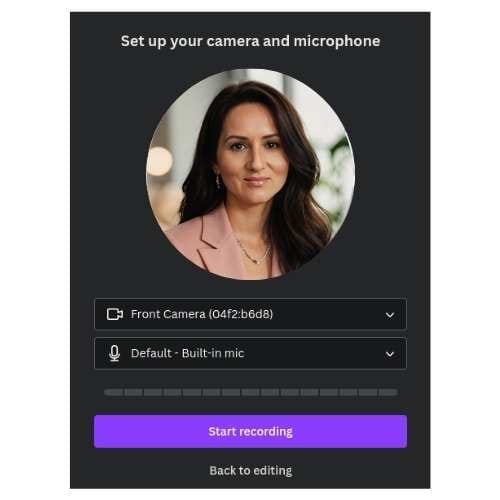
5. After finishing recording your slides, you can either copy the link to where the recording is hosted or simply download it.
That's the end of the 5 digital products you can create with AI in Canva.
Using AI can help you make digital products faster. It's convenient that all these tools are in one place, so you can start creating immediately!
If you're not using Canva yet, why wait? Start now!
I also have a Canva guide that will explain exactly how to use it, you can find it HERE
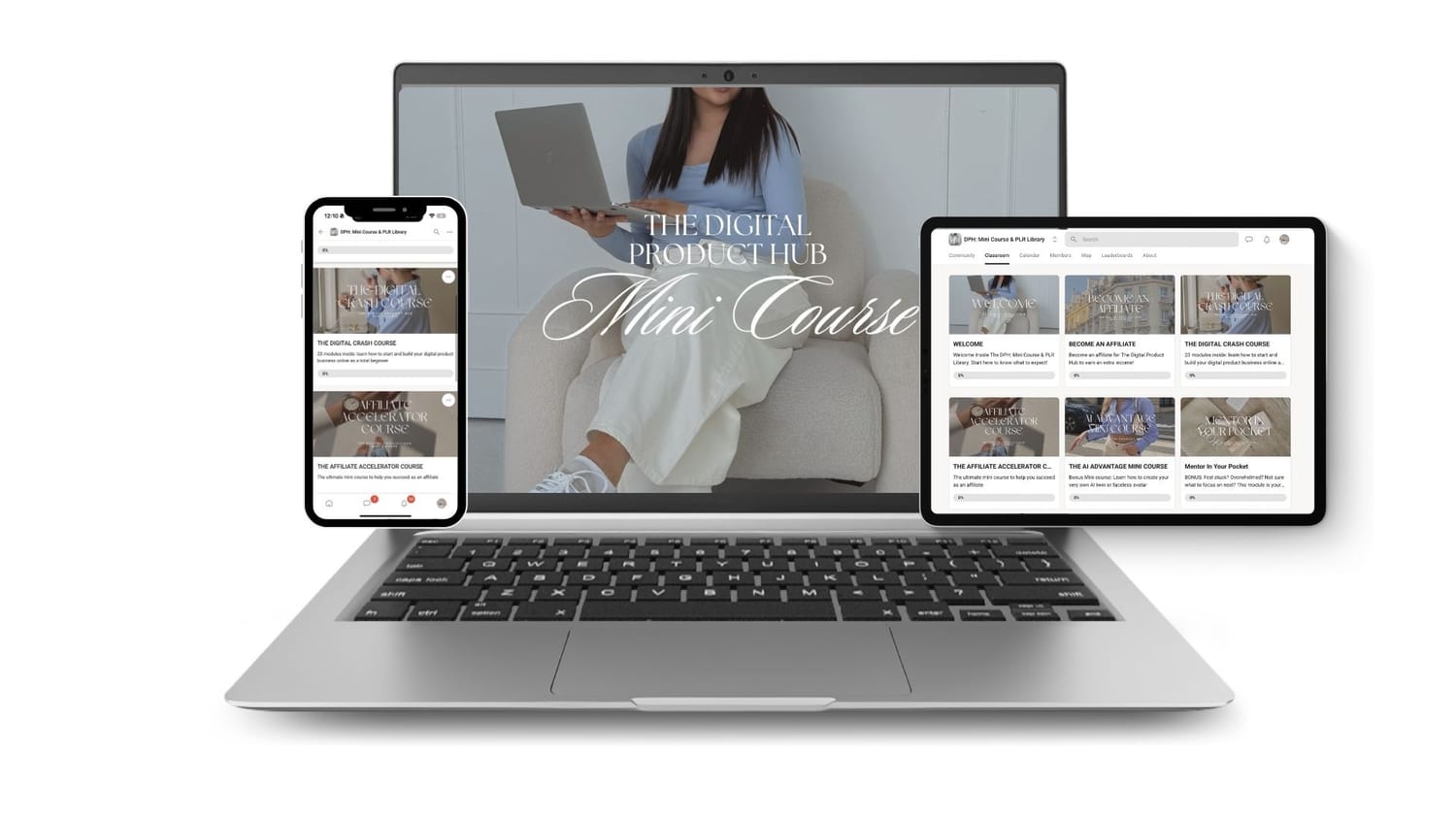
If you’re not really into creating your own products from scratch, you can grab a ready-made one you can sell right away? This comes with MRR rights, so you can sell it exactly as it is — saving you a ton of time and effort. And if you’re serious about starting your digital biz, there’s this really affordable course that shows you how to do the whole thing step-by-step.
👉 Check it out HERE!.


HEY I'M EMMA
I help hardworking,
passionate women like you
start and grow your online
business step by step.





Follow us on